Daily Morning Briefing
Start every day knowing exactly what needs your attention. HiveMind OS checks your email and calendar each morning, then delivers a clear summary — before you've finished your coffee.
TIP
New to HiveMind OS? Check the Glossary for quick definitions of terms like persona, connector, workflow, and trigger.
What You'll Need
| Item | Details |
|---|---|
| Email connector | Gmail, Microsoft 365, or any IMAP account |
| Calendar connector | Microsoft 365 or Gmail (optional but recommended) |
| Time | About 5 minutes |
Step 1: Connect Your Email & Calendar
If you've already connected your email (for example, from the Customer Support use case), you can skip this step.
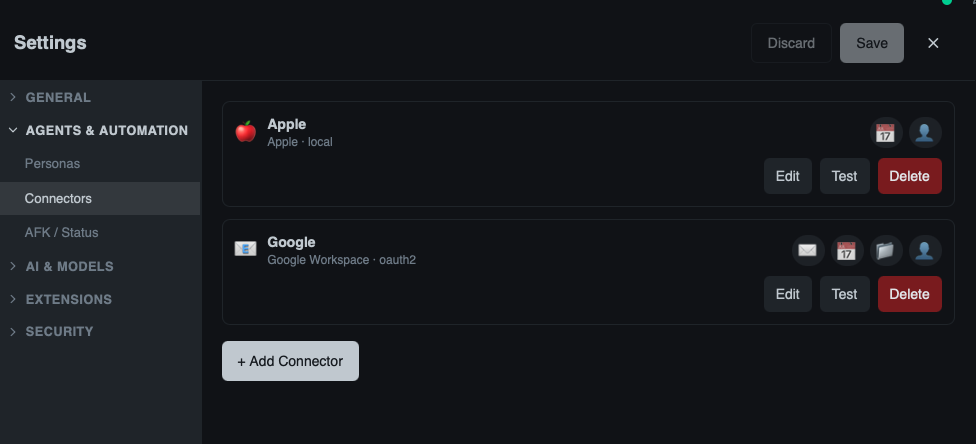
Otherwise, click Settings in the sidebar, then click Connectors. Click Add Connector and choose your email provider. Follow the prompts to authorize access. A connector links HiveMind OS to an external service like Gmail or Google Calendar.
TIP
For the best briefing experience, connect your calendar too — same process, just select your calendar provider.
Step 2: Create the Workflow
A workflow chains AI tasks into a repeatable automation. Here you'll create one that runs every morning.
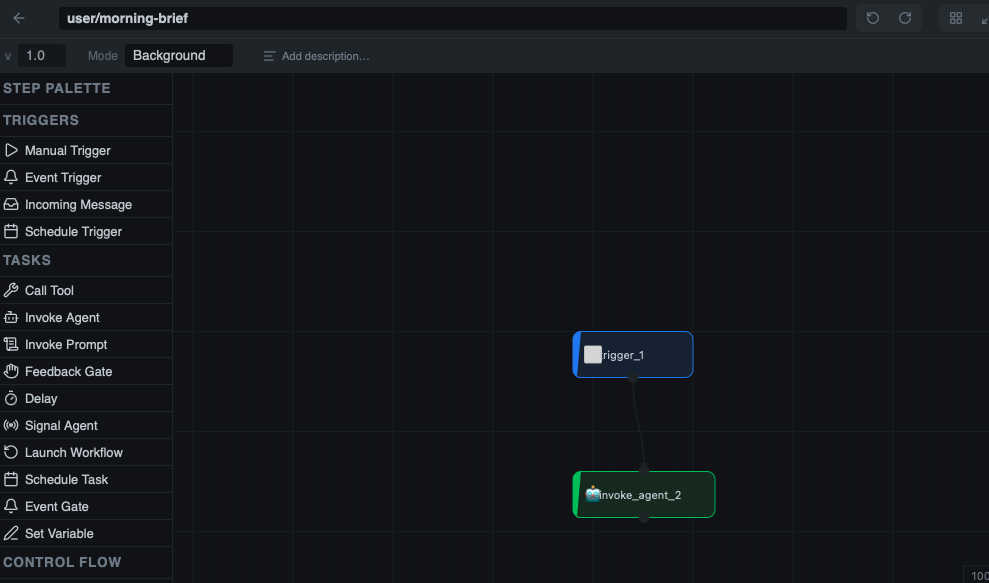
- Click the ⚙ gear icon next to Workflows in the sidebar to open the workflow definitions view, then click New Workflow.
- Name it something like
Morning Briefing. - Set the mode to Background.
Add a Schedule Trigger
- Click Add Trigger and select Schedule.
- Set it to run on weekdays at 9:00 AM. In the schedule field, enter the cron expression:
0 9 * * 1-5(weekdays at 9:00 AM). Don't worry — the app shows a plain-English preview like "Every weekday at 9:00 AM" so you can confirm it's right.
Add the Step
- Click Add Step and choose Invoke Agent.
- You can use the default persona or create a dedicated one (something like "Executive Assistant"). Make sure your email and calendar connectors allow this persona — click Settings in the sidebar, then click Connectors, edit the connector, and add the persona to its Allowed Personas list.
- In the instructions, type:
Read my recent emails and check my calendar for today. Summarize everything into a concise morning briefing organized by priority. Highlight anything urgent, list today's meetings, and suggest what I should focus on first. Email the finished briefing to me.
- Click Save.
Step 3: Test Before Going Live
Before enabling the schedule, verify the workflow produces a useful briefing.
- Leave the trigger disabled after saving.
- In the workflow definitions view (click the ⚙ gear icon next to Workflows in the sidebar), find your
Morning Briefingworkflow and click the Launch button. - Follow the launch wizard: select the trigger, review, and click Launch.
- Click Workflows in the sidebar (not the gear icon) to see running and completed instances. Check the briefing output.
- If the results look good, go back to the workflow definition and toggle the trigger to Enabled for automatic daily runs.
What You'll See
Every morning, a notification appears with something like this:
☀️ Good Morning — Here's Your Briefing for Tuesday, March 18
🔴 Urgent
- Email from Acme Corp: Contract renewal deadline is tomorrow. They need a signed copy by 5 PM.
📨 New Emails (12)
- 3 customer inquiries about pricing (forwarded to support)
- Newsletter from Industry Weekly
- Invoice from CloudHost Inc. — $247.00 due March 25
- 8 others (low priority)
📅 Today's Meetings
- 10:00 AM — Team standup (30 min, Google Meet)
- 1:00 PM — Client call with Acme Corp (45 min, Zoom)
- 3:30 PM — Marketing review (1 hr, Conference Room B)
✅ Suggested Priorities
- Handle the Acme Corp contract before your 1 PM call
- Review the CloudHost invoice
- Prep talking points for the marketing review
Make It Yours
Change the Schedule
Edit the workflow trigger to adjust the time. Early riser? Set it to 0 7 * * 1-5 (weekdays at 7:00 AM). Want a weekend edition? Change the cron to 0 9 * * * (every day at 9:00 AM) — the app preview will update so you can confirm.
Create an End-of-Day Recap
Duplicate the workflow, change the schedule to 0 17 * * 1-5 (weekdays at 5:00 PM), and adjust the instructions to summarize what happened today and what's carrying over to tomorrow.
Related
- Customer Support — Auto-reply to customer emails
- Meeting Prep — Get detailed prep briefs for every meeting
- Connectors Guide — Set up email, calendar, Slack, and more
- Scheduling Guide — Advanced scheduling options and cron expressions