
Personas Guide
This guide walks you through creating, configuring, and managing personas in HiveMind OS. For background on what personas are and how they fit into the system, see Concepts → Personas.
Creating a Persona from Scratch
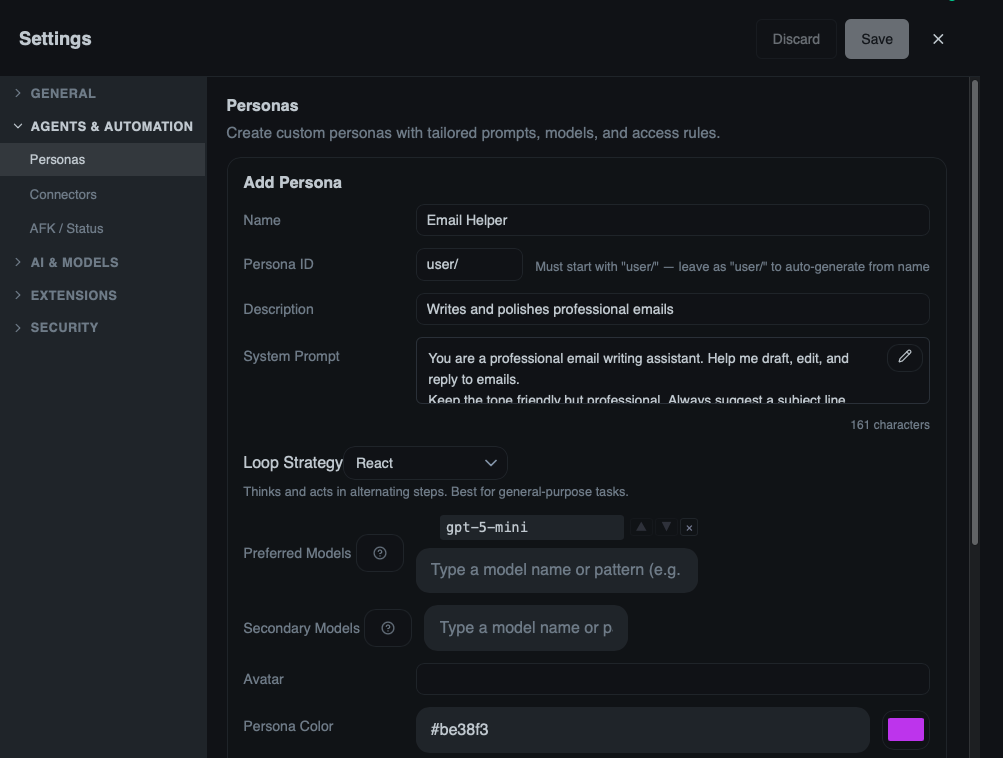
- Click Personas in the sidebar, then New Persona
- Fill in identity fields: Name, Description, Avatar (emoji or image URL), Color (hex)
- Write the system prompt (see tips below)
- Set model preferences — pick a primary model and optional fallbacks
- Scope tool access — select only the tools this persona needs, or
*for full access - Optionally add MCP servers for external integrations
- Choose a loop strategy:
react(default),sequential, orplan_then_execute - Click Save. Your persona appears under the
user/namespace.
Creating from a Template
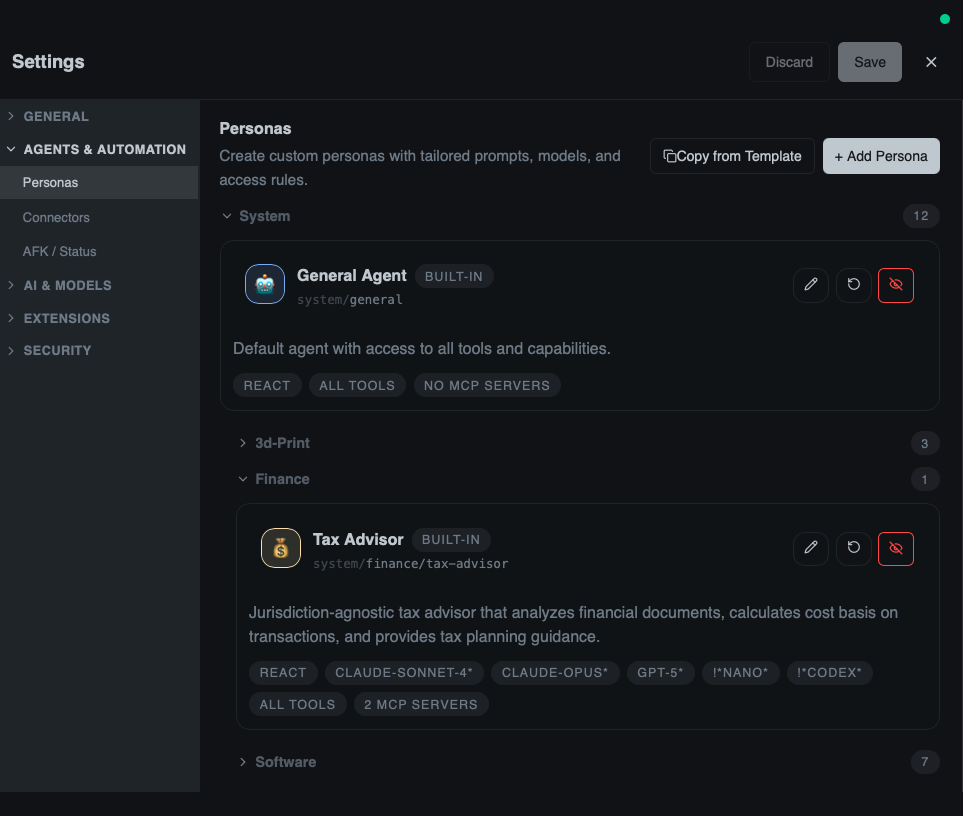
- Click Personas in the sidebar, then Browse Templates
- Pick a template and click Use Template — this pre-fills every field
- Customise the name, prompt, tools, or models to fit your use case
- Click Save to create your copy under
user/
TIP
Templates are a great starting point. Even if you plan to change everything, they show you what a well-structured persona looks like.
Writing Effective System Prompts
The system prompt is the single most important field. It defines how the agent behaves.
| Example | |
|---|---|
| ✅ Good | "You are a security-focused code reviewer. Check for SQL injection, XSS, and auth bypasses. Never modify files. Output findings as a Markdown checklist." |
| ❌ Bad | "You are a helpful assistant. Review code and find issues." |
- Be specific about the role — "You are an expert DevOps engineer" beats "You are helpful"
- Add constraints — "never modify files", "always cite sources"
- Specify output format — "respond in Markdown tables", "use numbered steps"
- Include domain knowledge — mention frameworks or standards the persona should follow
Setting Model Preferences
Each persona specifies a prioritised list of models:
- Preferred models — primary model(s) for conversation. The agent tries each in order; glob patterns like
claude-*are supported. - Secondary models — lighter models for background tasks (context-map generation, compaction).
preferred_models:
  - claude-sonnet
  - gpt-4o
secondary_models:
  - claude-haiku-*
  - gpt-4.1-mini
TIP
Both snake_case and camelCase keys work in YAML config files — the normalizer accepts either. These docs use snake_case to match the Rust struct field names.
Scoping Tool Access
Restricting tools is a security best practice. Only grant what the persona actually needs.
Example — a "Researcher" persona (read-only):
allowed_tools:
  - http.request
  - filesystem.read
  - filesystem.search
  - knowledge.query
Example — a "Developer" persona (full access):
allowed_tools:
  - "*"
WARNING
Using "*" grants access to every tool, including shell execution and file writes. Only use this for trusted, general-purpose personas. For specialist agents, always scope tools down.
Adding Prompt Templates
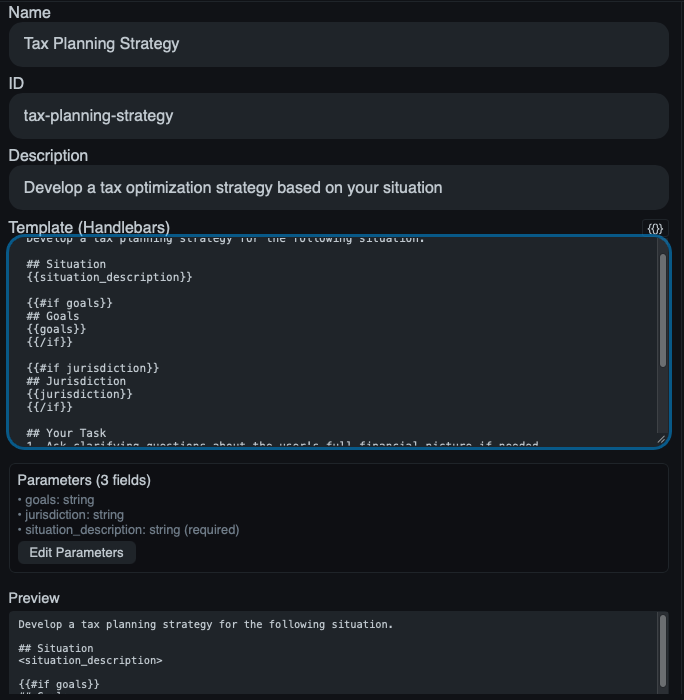
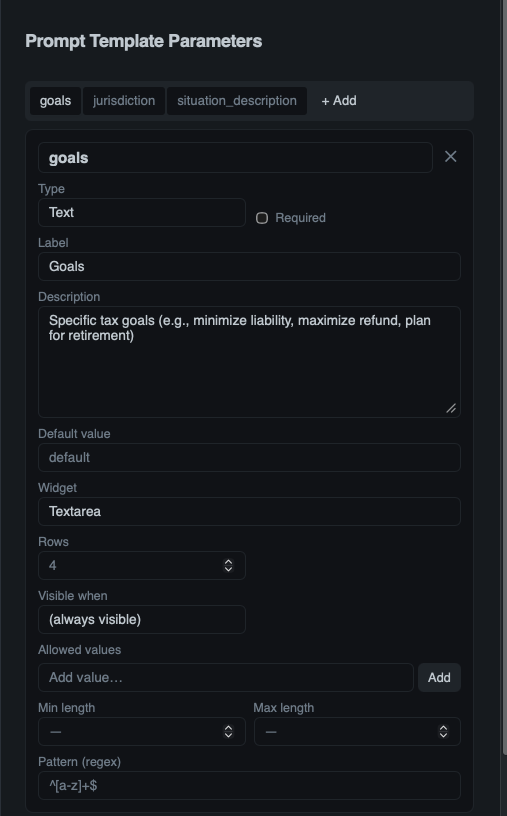
Prompt templates are reusable Handlebars snippets attached to a persona, invokable from chat, the Agent Stage, or workflows.
Open the persona in Settings → Personas, scroll to Prompt Templates → Add Template:
prompts:
  - id: summarize-logs
    name: Summarize Logs
    description: Parses and summarizes log output
    template: |
      Analyze these logs. Provide: error count/types,
      warnings needing attention, and recommended next steps.
      ```
      {{logs}}
      ```
    input_schema:
      type: object
      properties:
        logs:
          type: string
          description: Raw log output to analyze
      required: [logs]
Templates with an input_schema render an input form in the UI automatically.
For the full template syntax reference — including conditionals, loops, strict mode behavior, and more examples — see the Prompt Templates Reference.
Archiving and Restoring
Don't need a persona right now? Archive it instead of deleting.
- In Settings → Personas, find the persona and click Archive
- It's hidden from listings but stays resolvable — existing bots and workflows keep working
To restore: open Settings → Personas → Show Archived, find the persona, and click Restore. Built-in system/ personas cannot be deleted, only archived — you can reset them to factory defaults at any time.
Managing Skills per Persona
Each persona can have its own set of skills — domain-specific knowledge packs that make the agent smarter in particular areas.
- Open the persona in Settings → Personas and scroll to the Skills section
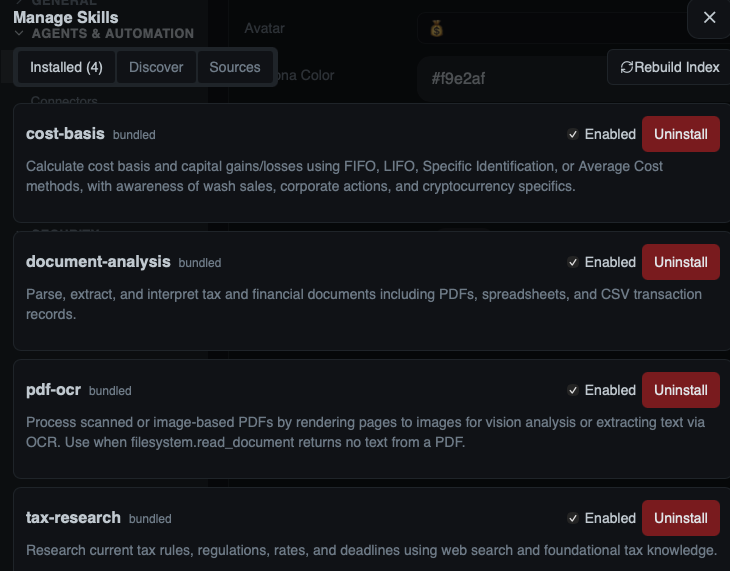
- Click Manage Skills to open the skills dialog
- Browse available skills, toggle them on/off for this persona
- Enabled skills appear as pills in the persona editor
TIP
Skills are scoped to individual personas. Install a "Kubernetes" skill on your DevOps persona without cluttering your other personas.
Walkthrough: Build a "DevOps Troubleshooter"
Let's put it all together with a complete example:
id: user/devops-troubleshooter
name: DevOps Troubleshooter
description: Diagnoses infrastructure and deployment issues
system_prompt: |
  You are an expert DevOps engineer specializing in troubleshooting.
  When diagnosing issues:
  1. Always check logs first
  2. Verify the deployment pipeline status
  3. Check resource utilization (CPU, memory, disk)
  4. Look for recent config changes
  Be methodical and explain your reasoning step by step.
preferred_models:
  - claude-sonnet
  - gpt-4o
secondary_models:
  - claude-haiku-*
allowed_tools:
  - shell.execute
  - filesystem.read
  - http.request
  - filesystem.search
loop_strategy: plan_then_execute
context_map_strategy: code
prompts:
  - id: incident-triage
    name: Incident Triage
    description: Walk through a structured incident triage
    template: |
      A new incident has been reported: {{description}}
      Severity: {{severity}}

      Run through the standard triage checklist:
      1. Check service health endpoints
      2. Review recent deployments
      3. Inspect error rates and latency
      4. Identify blast radius
    input_schema:
      type: object
      properties:
        description:
          type: string
        severity:
          type: string
          enum: [low, medium, high, critical]
      required: [description, severity]
This persona can read files, search codebases, make HTTP requests, and run shell commands — but cannot write files or modify code. The plan_then_execute strategy means it creates a diagnostic plan before acting.
Use it in chat (select from the persona picker), as a bot (trigger on PagerDuty alerts), or in a workflow (invoke_agent step in your incident-response pipeline).
Next Steps
- Agentic Loops Guide — Loop strategies in depth
- MCP Servers Guide — Connect external tools to personas
- Bots Guide — Wrap personas with triggers and schedules
- Concepts → Personas — How personas work under the hood