First Five Minutes
You've installed HiveMind OS and the app is open — let's take it for a spin! Here are five things you can do right now, entirely from the desktop app. No config files, no terminal, no technical setup. Each task takes under a minute.
💬 1. Have Your First Conversation
HiveMind OS works like chatting with a knowledgeable friend — one who can research, write, analyze, and remember things for you. Let's start with a simple question.
Try this:
- Click Sessions in the sidebar.
- At the top of the chat, open the persona picker dropdown and select General.
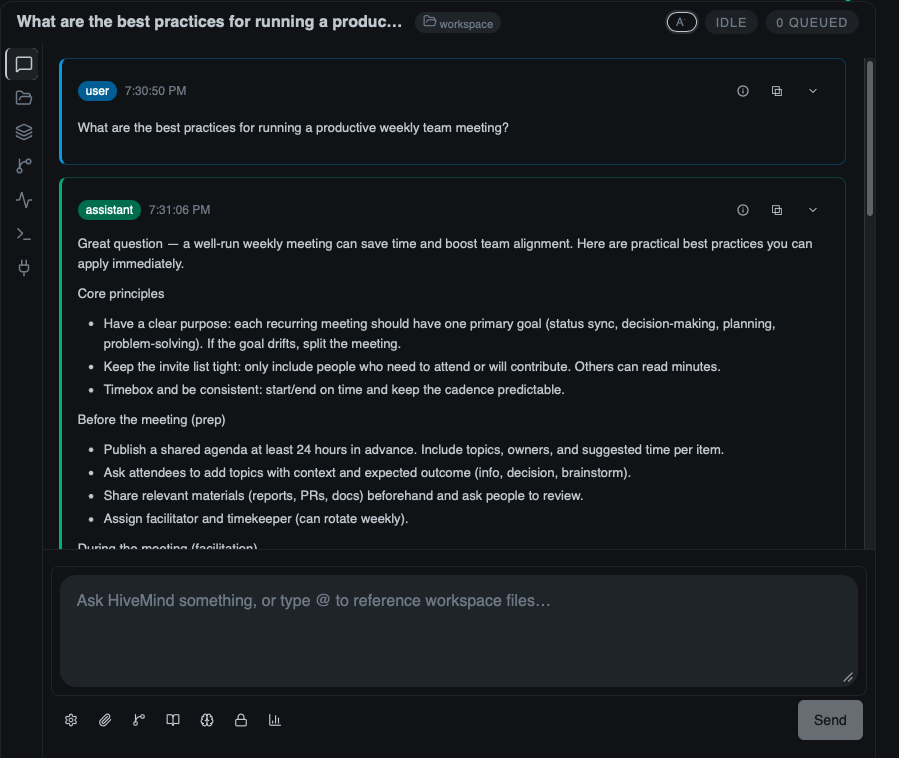
- Type a question in the message box — anything you're curious about. For example:
What are the best practices for running a productive weekly team meeting?- Press Enter (or click Send) and watch the response stream in.
What to expect: A thoughtful, structured answer — not a list of links. HiveMind OS synthesizes information and gives you a real response you can act on immediately. Feel free to ask follow-up questions in the same conversation; it keeps full context of what you've discussed.
🧠 2. Teach It Something About You
HiveMind OS has a built-in knowledge graph that remembers things you tell it — across all future conversations, not just the current one. Think of it as building a relationship: the more it knows about you, the more helpful it becomes.
Try this:
- In the same chat, type something personal or work-related. For example:
My name is John, store this in your knowledge base.- Press Enter.
What to expect: HiveMind OS acknowledges what you've shared and saves it to your knowledge graph. The next time you start a brand new conversation — even days later — it will already know your company name and your preference for concise answers. You don't need to repeat yourself.
Build your knowledge over time
You don't have to teach it everything at once. Mention things naturally as they come up — "I use Gmail for work email," "My team follows two-week sprints," "I'm based in London" — and the knowledge graph keeps growing.
🎭 3. Create a Custom Persona
Personas are like specialized assistants you can switch between. The built-in General persona is great for everyday questions, but you can create your own for specific tasks — an email writer, a meeting summarizer, a brainstorming partner, and more.
Try this:
- Click Personas in the sidebar.
- Click New Persona.
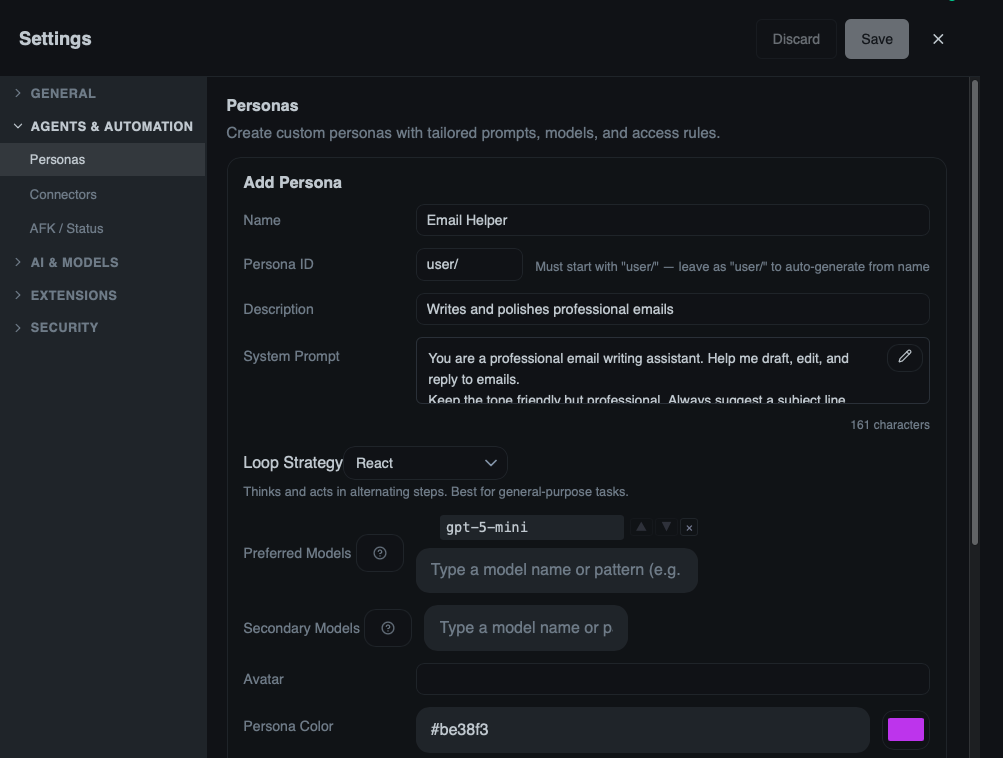
- Fill in the details:
- Name: Email Helper
- Description: Writes and polishes professional emails
- Avatar / Color: Pick any color you like
- System Prompt: Write something like:
You are a professional email writing assistant. Help me draft, edit, and reply to emails.
Keep the tone friendly but professional. Always suggest a subject line.- Click Save.
What to expect: Your new Email Helper persona appears in the persona picker dropdown in the Chat view. Select it anytime you need help drafting an email, and it will follow the style instructions you gave it. You can create as many personas as you like for different tasks.
Browse templates
Don't want to write a system prompt from scratch? On the Personas page, look for the option to browse templates — there are ready-made personas you can use or customize.
⚙️ 4. Launch a Bundled Workflow
Workflows are pre-built automations that come with HiveMind OS. They handle multi-step tasks — like triaging emails, planning a software feature, or running an approval process — so you don't have to do every step manually.
Try this:
- In the sidebar, find the Workflows section.
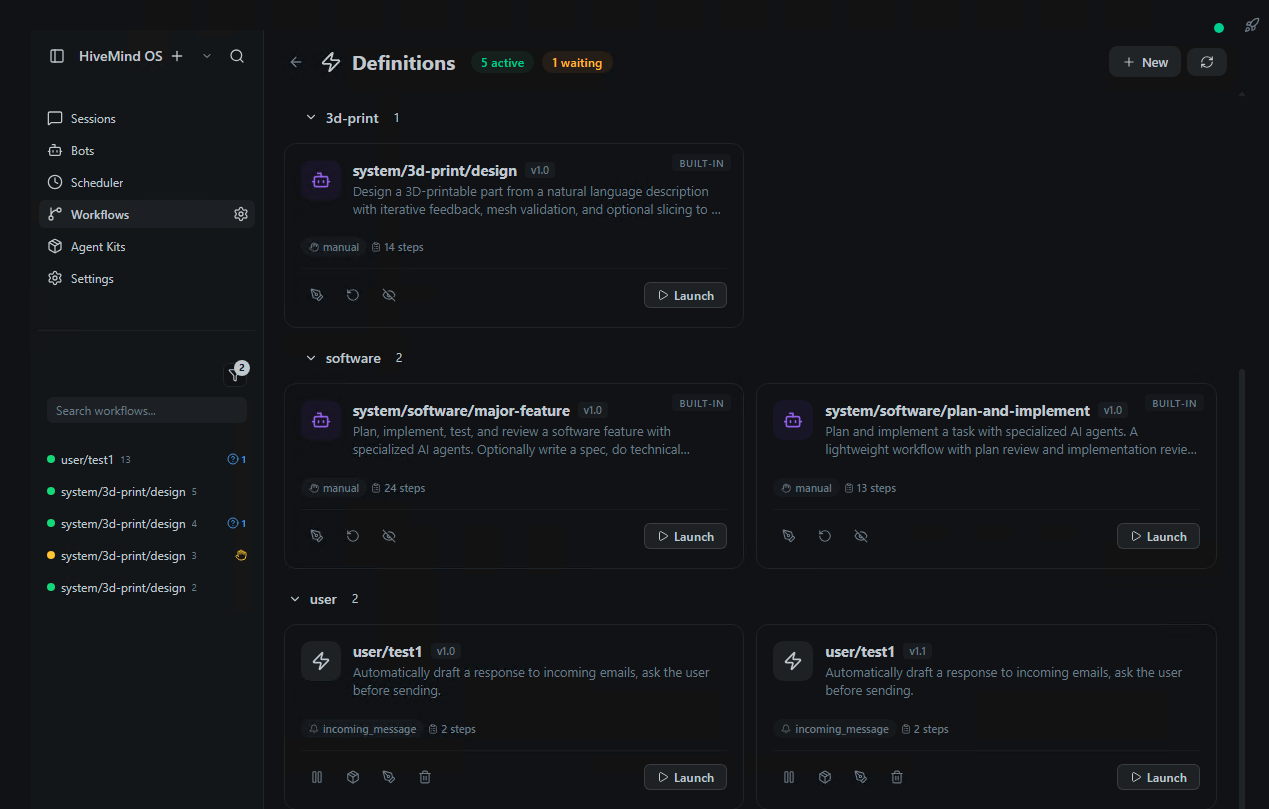
- Click the gear on the Workflows row. That opens workflow definitions. Clicking the Workflows label itself shows running instances.
- Browse the list of bundled workflows. Find one like Plan & Implement (under
system/software/plan-and-implement). - Click the Launch button on the workflow card.
- A wizard overlay appears — walk through each step, filling in the required inputs (e.g., a description of what you want to plan).
- Click Launch (or Finish) to start it.
What to expect: The workflow kicks off and runs its steps automatically. You can monitor progress from the Workflows section in the sidebar. Bundled workflows are maintained by the HiveMind OS team and cover common use cases out of the box.
What bundled workflows are available?
Some examples that ship with the app: Approval Workflow, Email Responder, Email Triage, Plan & Implement, Major Feature, and 3D Print Design. More may be added over time.
🤖 5. Launch a Bot
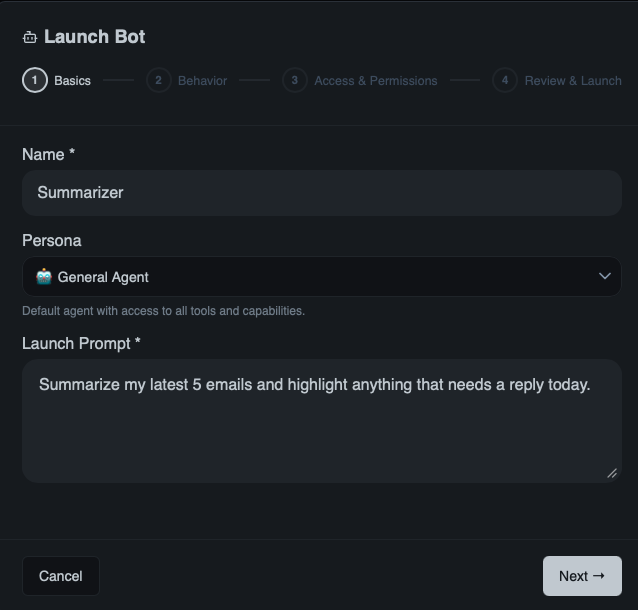
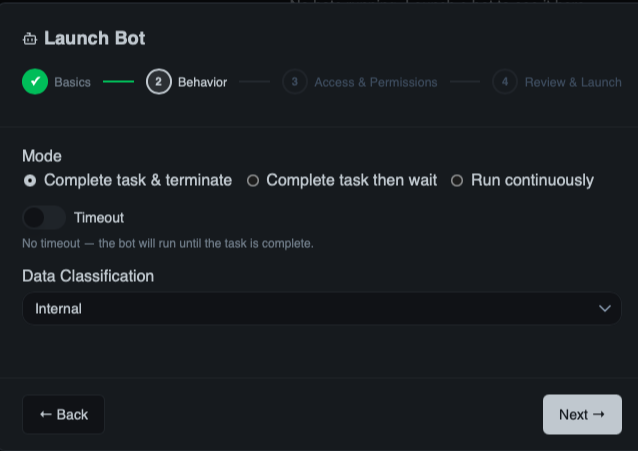
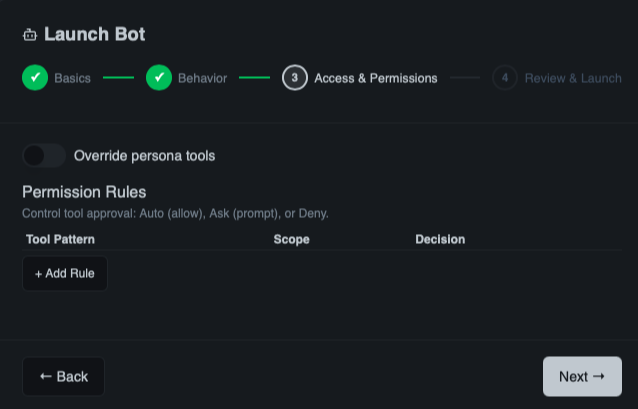
Bots are one-shot background agents. You give them a task, pick a persona, and let them run — no chat window required. They're perfect for tasks you want to fire and forget.
Try this:
- In the sidebar, click Bots.
- Click Launch Bot.
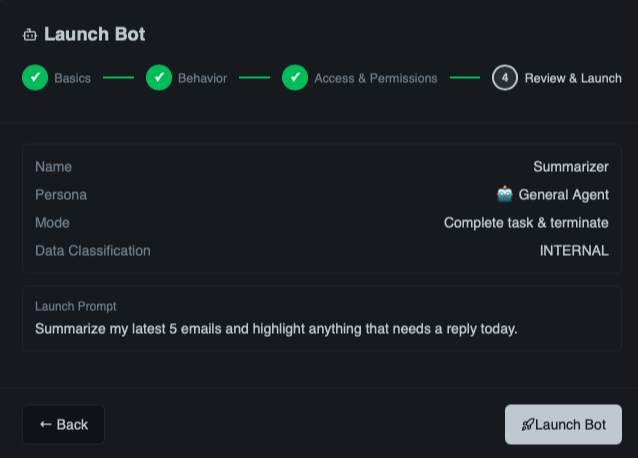
- Pick a persona (e.g., General).
- Describe the task. For example:
Summarize my latest 5 emails and highlight anything that needs a reply today.- Click Launch.
What to expect: The bot starts working in the background. You can close the dialog and keep using HiveMind OS for other things. When the bot finishes, you'll find its results in the Bots section. Unlike a chat conversation, bots don't require you to stay on the page — they run independently.
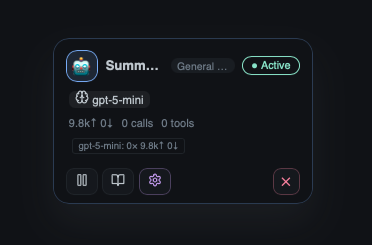
Once launched, the bot appears on the dashboard and starts working on your task:
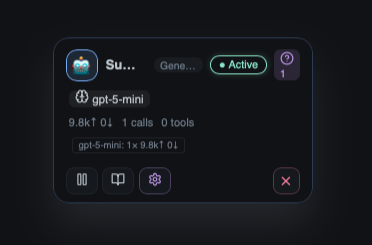
Sometimes a bot needs your input before it can continue — for example, to clarify something or ask you to make a choice. When that happens, a question badge appears on the bot. Click it to read the question and reply:
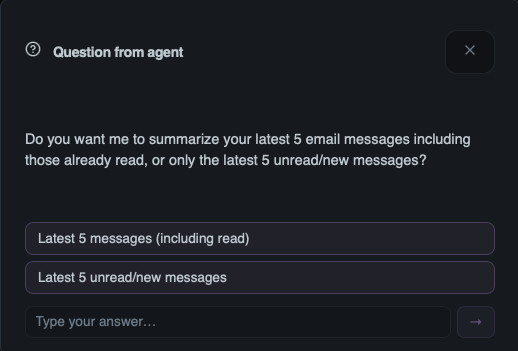
When you click the badge, a dialog opens where you can read the bot's question and type your response:
🚀 You're Just Getting Started
These five tasks are just the beginning. HiveMind OS can schedule background tasks, chain multi-step workflows, connect to external tools, and much more.
Ready to go deeper? Here are some great next stops:
- Concepts — Understand how HiveMind OS works under the hood
- Glossary — Look up any unfamiliar terms
- Use Cases — See real-world examples of what you can build
📖 New to the terminology?
Words like persona, workflow, bot, and knowledge graph have specific meanings in HiveMind OS. Check the Glossary whenever something is unclear.