
Bots Guide
This guide walks you through launching, configuring, and orchestrating bots in HiveMind OS.
Launching Your First Bot
- Open the Bots page from the sidebar
- Click Launch Bot
- Choose a persona — the persona defines its system prompt, tools, and model. Pick the one that matches the job (optional — a default persona is used if omitted)
- Set a launch prompt — the bot's first mission: "Review the open PRs in our frontend repo for accessibility issues."
- Pick a mode — One-Shot, Idle After Task, or Continuous (see below)
- Configure permissions — set data classification, adjust tool access, add approval rules
- Click Launch — the bot spins up immediately and starts working
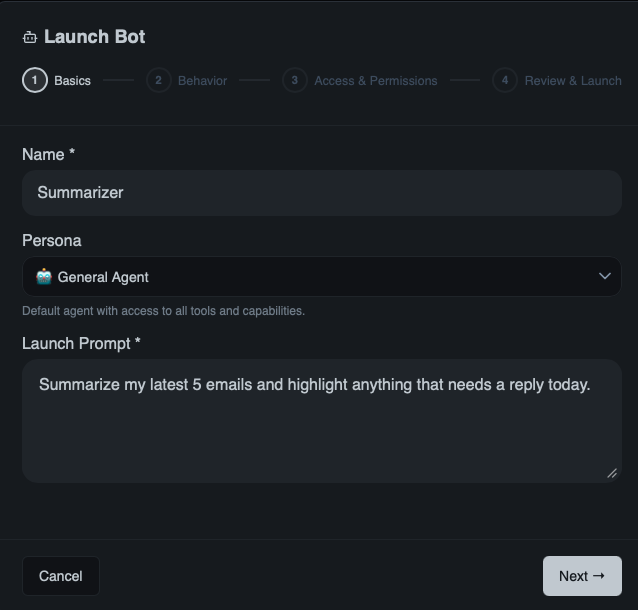
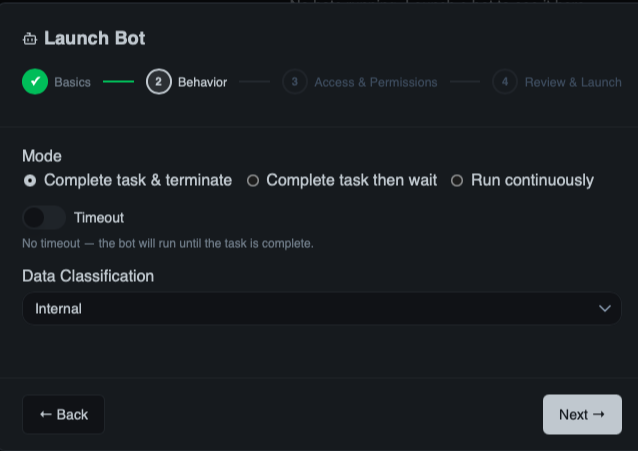
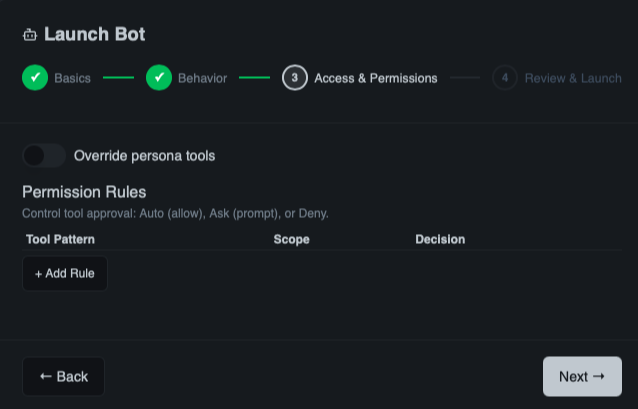
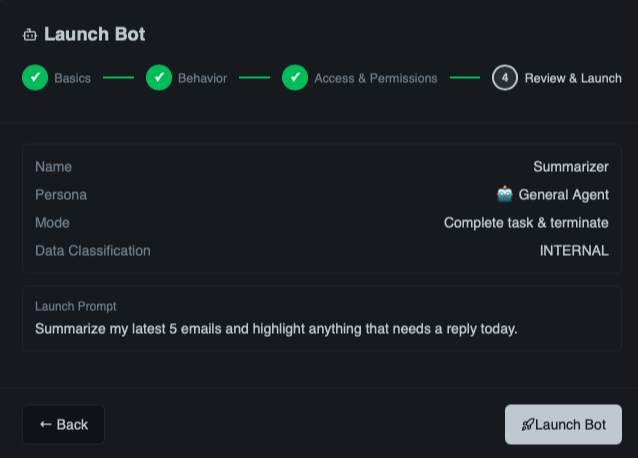
Once launched, the bot appears on the Bots dashboard where you can monitor its progress:
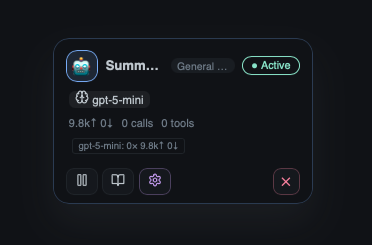
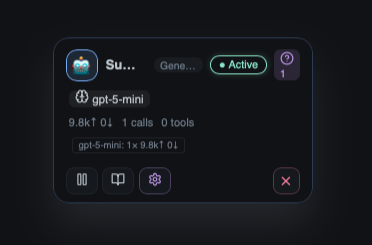
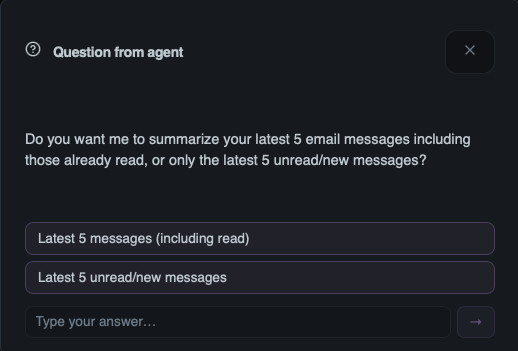
If the bot needs your input — for example, to clarify instructions or make a decision — it shows a question badge. Click it to see the question and respond:
Bot Modes Deep-Dive
One-Shot
Fire-and-forget. The bot executes its launch prompt and terminates when done.
Example: "Analyze this codebase and generate architecture documentation."
One-shot bots support an optional timeout — a safety net that stops the bot if the task takes too long.
Idle After Task
The default mode. The bot completes its launch prompt, then waits for new messages — like a team member who asks "what's next?"
Example: "Review this PR for security issues." → Bot reviews → You send: "Now fix the issues you found." → Bot keeps going.
Idle bots stay alive until you deactivate them or an optional idle timeout expires.
Continuous
An always-on daemon. The bot treats its launch prompt as standing orders and runs indefinitely.
Example: "Monitor the error log and alert me when the error rate spikes above 1%."
Choosing a mode
One-Shot for bounded tasks with a clear end. Idle After Task when you want a specialist standing by for follow-ups. Continuous for monitoring, event-driven automation, or anything that should never stop.
Continuous bots and resources
Continuous bots consume tokens and compute for as long as they run. Review their activity regularly and use permission rules to require approval for expensive or destructive operations.
Configuring Bots
Every bot carries its own configuration:
| Setting | Purpose |
|---|---|
| Data classification | Sensitivity ceiling — Public, Internal, Confidential, or Restricted. The bot cannot access data above its level. |
| Tool overrides | Add or remove tools beyond persona defaults via allowed_tools. |
| Permission rules | Per-tool policies matching a pattern (e.g., shell.execute, filesystem.*). Actions: Auto, Ask (require approval), or Deny. |
| Timeout | One-shot bots: max execution seconds (timeout_secs). Not applicable to other modes. |
| Model override | Pin a specific model or set a preferred fallback list. |
Messaging Bots
Bots in Idle After Task or Continuous mode accept follow-up messages. Open the bot from the dashboard, type your instruction, and the bot processes it and responds. This turns idle bots into persistent specialists you can direct over time.
The Bots Dashboard
The Bots page is your command center:
- Status indicators — Spawning, Active, Waiting, Paused, Blocked, Done, or Error at a glance
- Activity feed — recent actions, tool calls, and outputs per bot
- Quick actions — pause, resume, message, or delete with one click
- Approval badges — bots waiting for human approval are surfaced prominently
- Question badges — bots waiting for user input show a question badge so you can respond quickly
Flight Deck
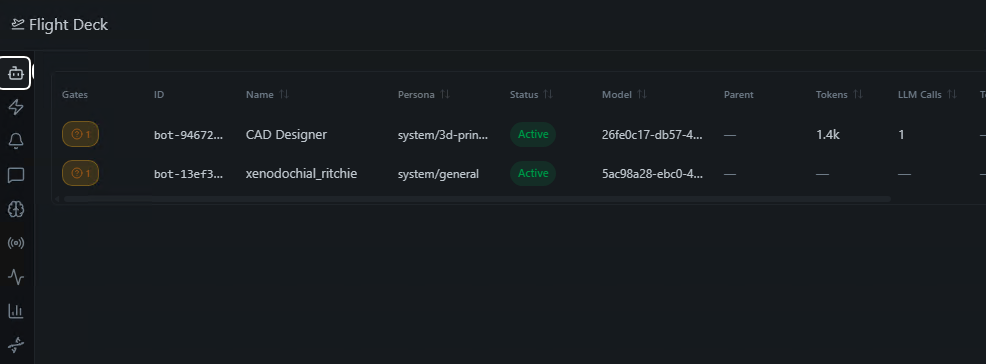
You can also monitor all active bots from the Flight Deck. Click the Flight Deck button in the top-right corner, or press Ctrl+Shift+F, for a global view of every running agent and workflow. See the No-Code Guide for details.
Multi-Bot Orchestration
The Agent Stage
When multiple bots work together, the Agent Stage provides a visual collaboration canvas showing each bot as a node with message flows and status.
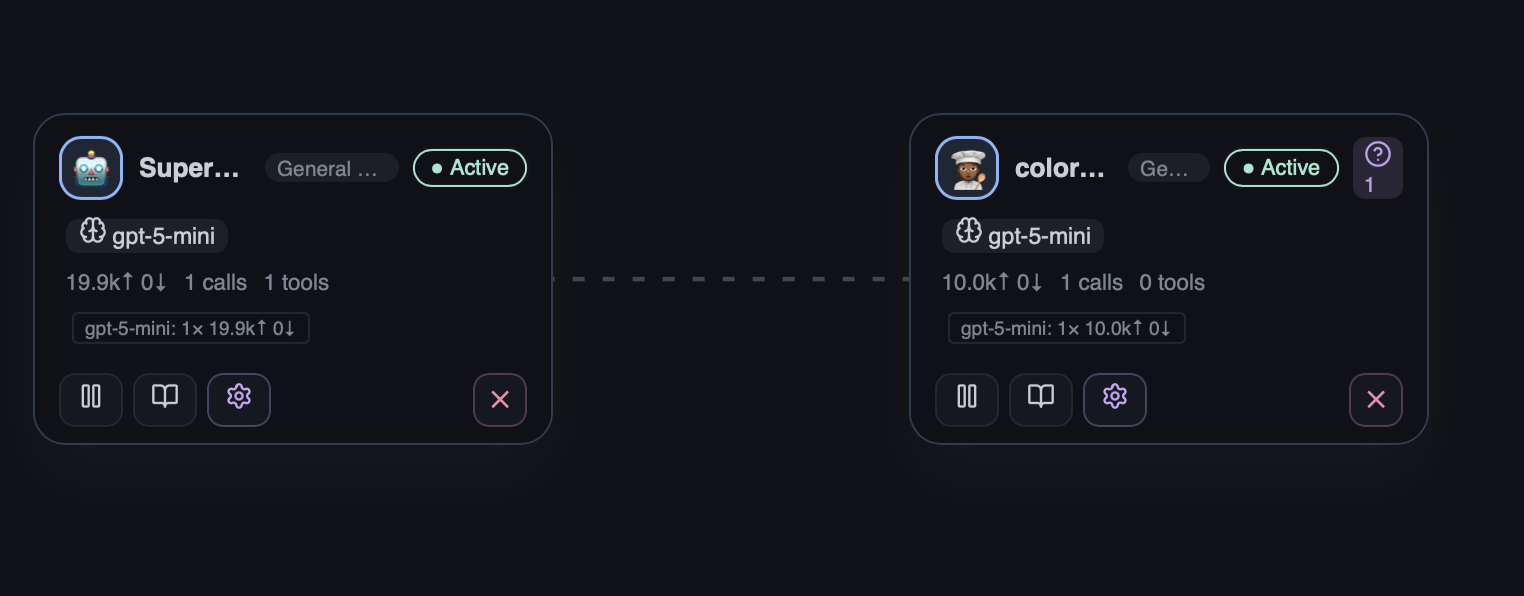
Each agent card displays its persona, model, token usage, and live status. Visual badges surface key states at a glance:
- Question badge (?) — the bot has asked a question and is waiting for your response. The badge count shows how many pending questions there are.
- Approval badge 🔒 — the bot needs human approval before it can proceed with a tool call (see Security Policies).
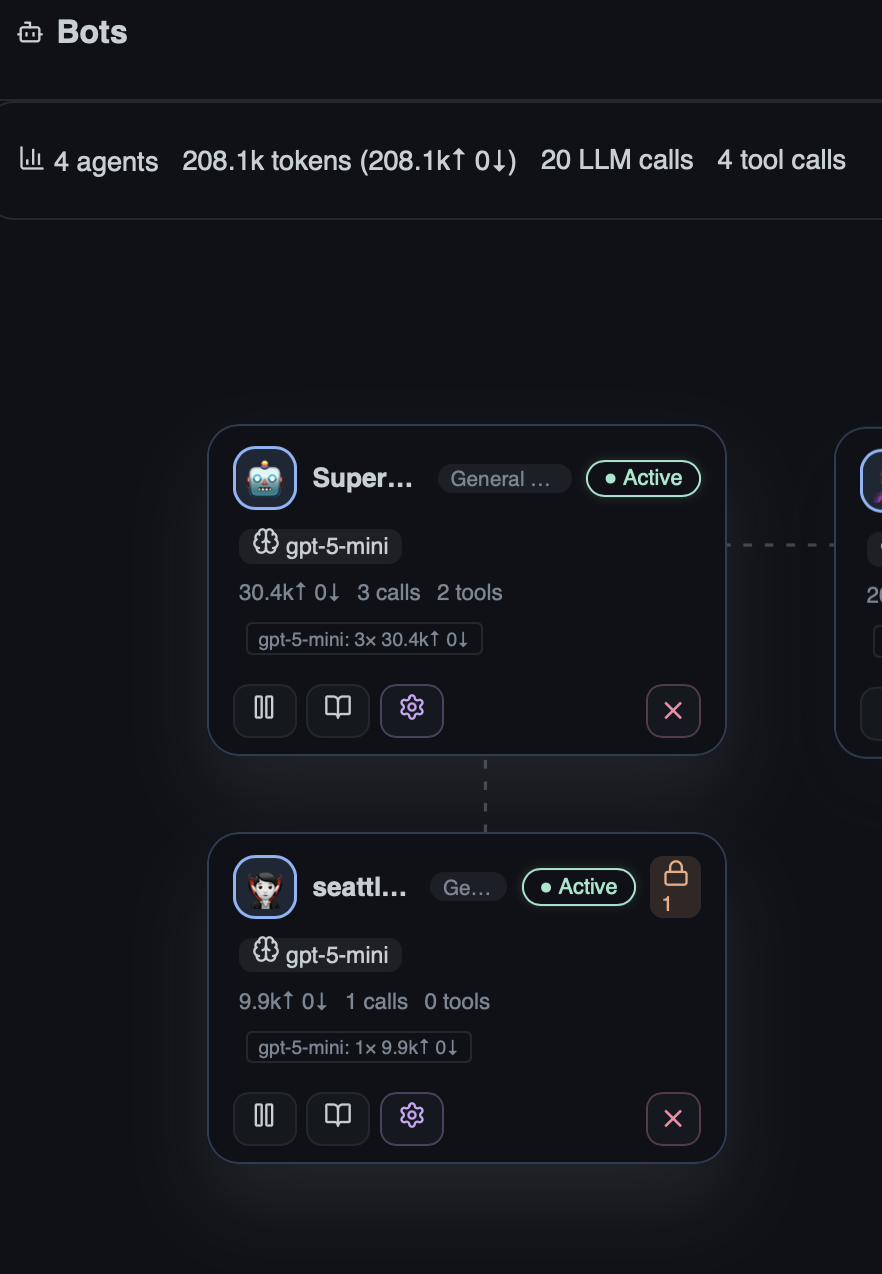
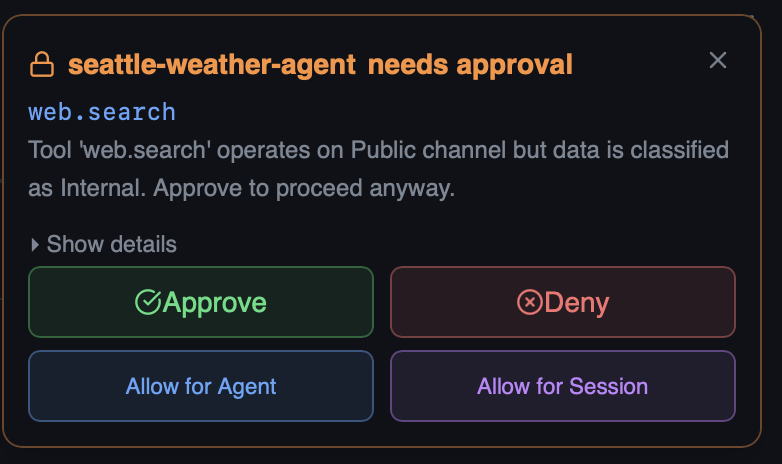
When a bot requires approval, a toast notification appears with quick-action buttons so you can respond without leaving the Stage:
You can also click the badge or the toast to open the full Tool Approval dialog, which shows the tool name, the reason approval is required, and the exact input the bot wants to send:
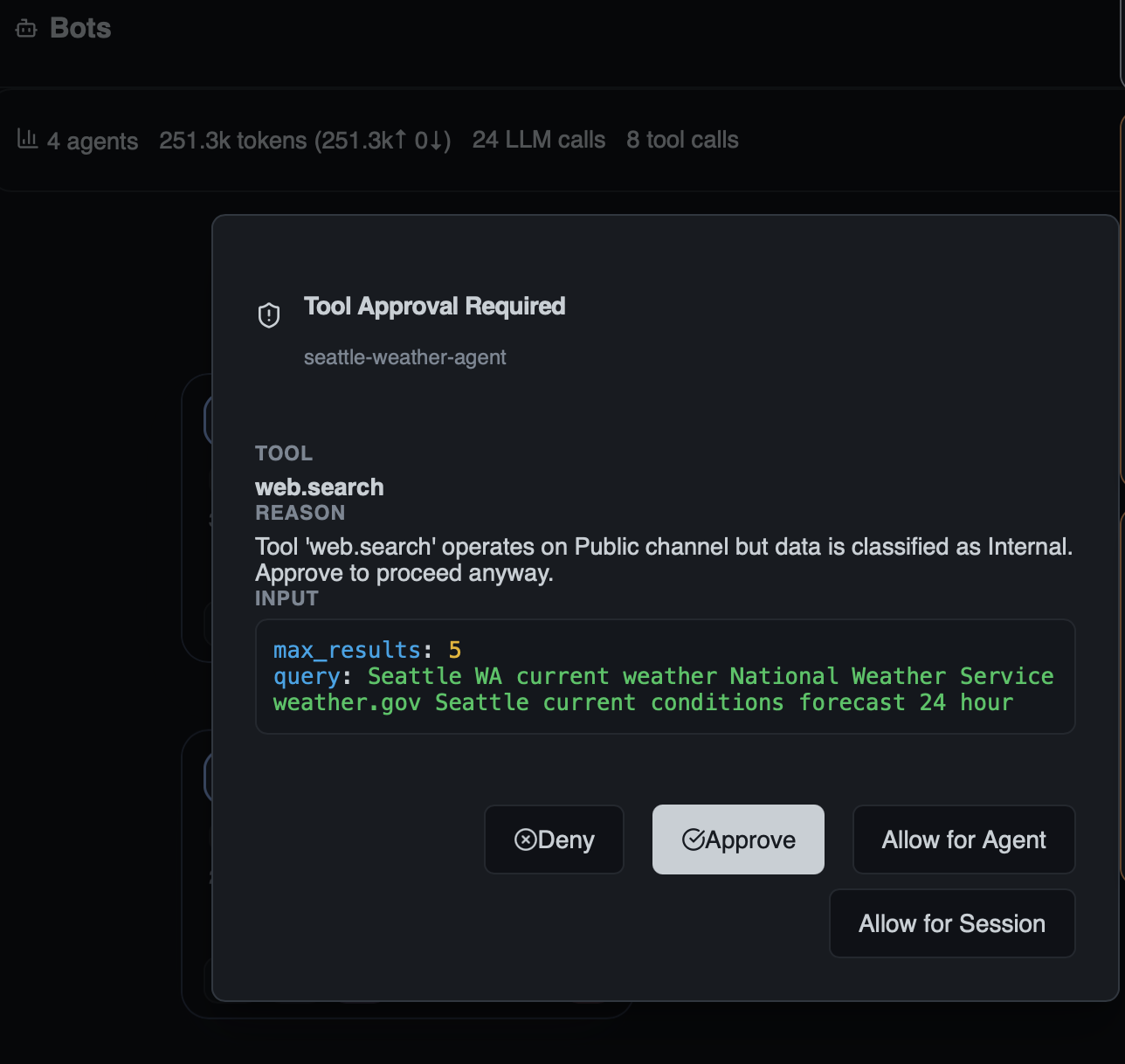
The approval options give you fine-grained control:
| Option | Effect |
|---|---|
| Approve | Allow this single tool call |
| Deny | Block this single tool call |
| Allow for Agent | Auto-approve this tool for the rest of this bot's lifetime |
| Allow for Session | Auto-approve this tool for all bots in the current session |
Inter-Bot Messaging
Bots send messages to each other through the supervisor — a researcher passes findings to a developer, who forwards to a reviewer, all automatically.
Task Delegation Patterns
- Pipeline — Bot A → Bot B → Bot C in sequence
- Fan-out — One bot delegates sub-tasks to multiple bots in parallel
- Feedback loop — Reviewer sends corrections back to developer for iteration
Managing Bots
- Activate — Resume a paused bot. Waiting bots pick up where they left off; continuous bots restart their standing orders
- Deactivate — Pause without losing configuration. No tokens consumed while paused
- Delete — Permanently remove a bot and its config
- View history — Open any bot to review its full conversation log and tool calls
Walkthrough: Three-Bot Feature Collaboration
Here's a real-world scenario — three bots collaborating on a feature.
| Bot | Mode | Tools |
|---|---|---|
| Researcher | Continuous | http.request, filesystem.read |
| Developer | Idle After Task | Full access |
| Reviewer | Idle After Task | Read-only (filesystem.read, filesystem.search) |
- Researcher prompt: "Research best practices for rate limiting in REST APIs. Send findings to the Developer bot."
- Developer prompt: "Wait for requirements from Researcher, then implement rate-limiting middleware."
- Reviewer prompt: "Wait for Developer, then review for correctness, performance, and security."
How it plays out:
- Researcher searches the web, reads code, and compiles requirements
- Sends the summary to Developer via inter-bot messaging
- Developer implements, writes tests, and notifies Reviewer
- Reviewer sends feedback back to Developer
- Developer iterates — the cycle repeats until the review passes
Open the Agent Stage to watch all three bots collaborating live.
Learn More
- Bots Concept — What bots are and how they work
- Personas Guide — Creating the personas that power your bots
- Workflows Guide — Automating multi-step processes
- Security Policies Guide — Data classification and permission rules in depth