
Quickstart
You installed HiveMind OS — nice. Let's get you from zero to a working AI agent in about two minutes.
1. The Setup Wizard
Open HiveMind OS. On first launch you'll see a Setup Wizard that walks you through everything step by step:
| Step | What you do |
|---|---|
| Welcome | Click Get Started |
| Providers | Add at least one AI model provider (see options below) |
| Connectors | Optionally connect email, calendar, or chat services — or skip for now |
| Web Search | Optionally configure web search — or skip |
| Models | Optionally download the BGE Small embedding model for local knowledge search |
| Tour | Quick overview of key features — then you're in! |
You only need to complete the Providers step to start chatting. Everything else can be configured later in Settings.
2. Connect a Model Provider
In the Providers step, pick a provider card and fill in the details:
Option A: OpenAI-Compatible API Key (simplest)
- Select OpenAI Compatible
- Paste your API key and base URL. Done.
Option B: Anthropic
- Select Anthropic
- Paste your Anthropic API key. Done.
Option C: GitHub Copilot
- Select GitHub Copilot
- Your browser opens the GitHub OAuth flow — approve access
- Token is stored securely in your OS keychain. Done.
Option D: Ollama (Local)
- Select Ollama (Local)
- Make sure Ollama is running on your machine (default:
http://localhost:11434) - Pick which models to use. Done — fully offline.
TIP
You can add more providers later in Settings → Providers. HiveMind OS routes between them automatically based on task, cost, and data sensitivity.
3. Your First Conversation
Once connected, you land in the Chat view with a greeting from your agent. Let's try something practical.
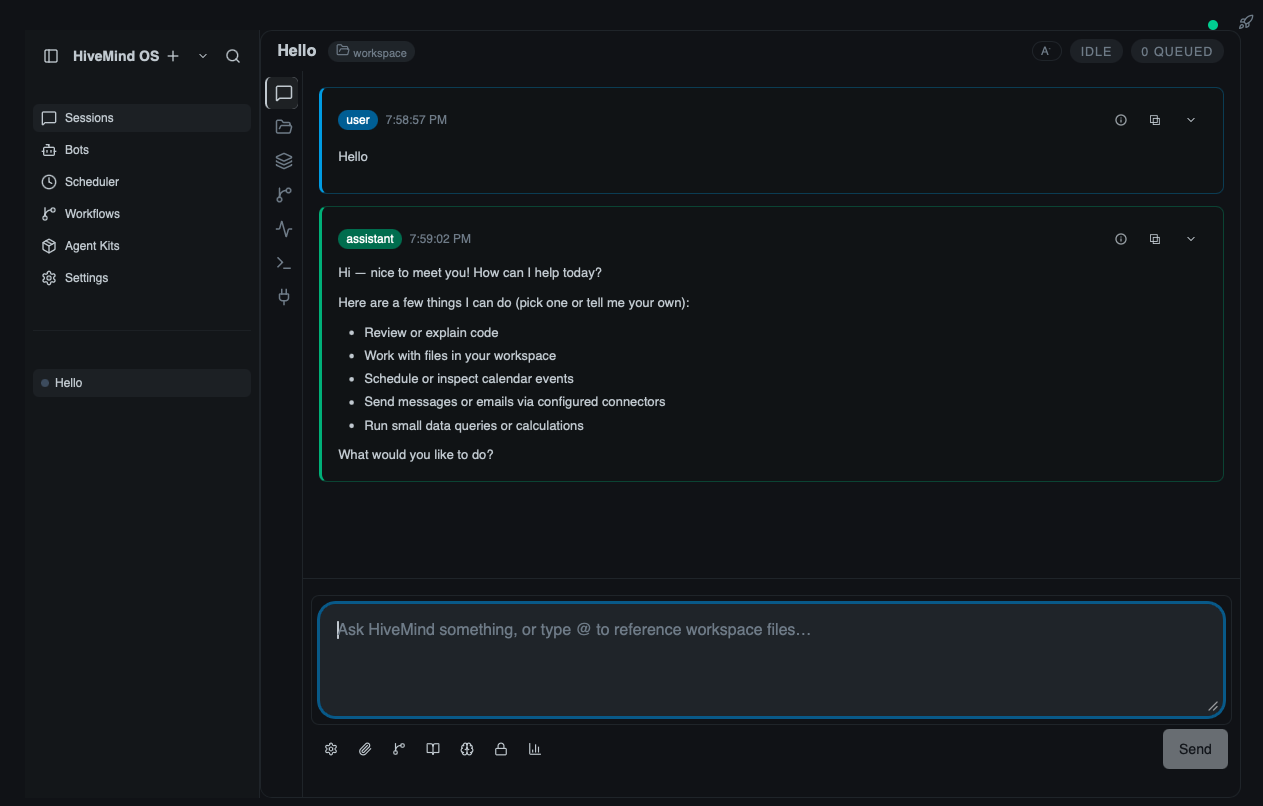
Step 1 — Ask a real business question. Type (or copy-paste):
I need to write a professional email to a client explaining that their
project will be delayed by two weeks. Keep it empathetic and solution-focused.
Step 2 — Watch the agent work. You'll see HiveMind OS thinking in real time:
🧠 Planning: I'll draft a professional, empathetic email explaining the delay...

✍️ Drafting email with a clear explanation, apology, and revised timeline...

✅ Done — here's your email draft.
Step 3 — Get a polished email draft. The agent delivers a ready-to-send email — professional tone, empathetic language, and a clear next step for the client. Copy it, tweak it if you like, and send.
Now try something else:
Summarize the key points from this article: https://example.com/your-articleThe agent fetches the page, reads the content, and gives you a clean summary with the key takeaways — no need to read the whole thing yourself.
4. What Just Happened?
Behind the scenes, HiveMind OS:
- Understood your request — figured out what you needed and the best way to help
- Chose the right approach — drafting, researching, analyzing, or a combination
- Used tools when needed — web search, file reading, email, and more
- Kept your data private — nothing left your computer unless you allowed it
That's the core of HiveMind OS: an AI assistant that thinks, acts, and respects your privacy — automatically.
5. What's Next?
You're up and running! Here's where to go from here:
For Business Users
- Use Cases — Ready-made automations for customer support, meeting prep, daily briefings, and more
- No-Code Guide — Do everything from the app — no terminal, no config files
- First Five Minutes — Quick tips to get the most out of HiveMind OS
- Privacy & Security — Learn how your private data stays private
For Developers
- Concepts → Agentic Loops — Understand how HiveMind OS reasons and plans
- Concepts → Knowledge Graph — See how memory works across sessions
- Concepts → Tools & MCP — Connect external tools like GitHub, Slack, or databases